
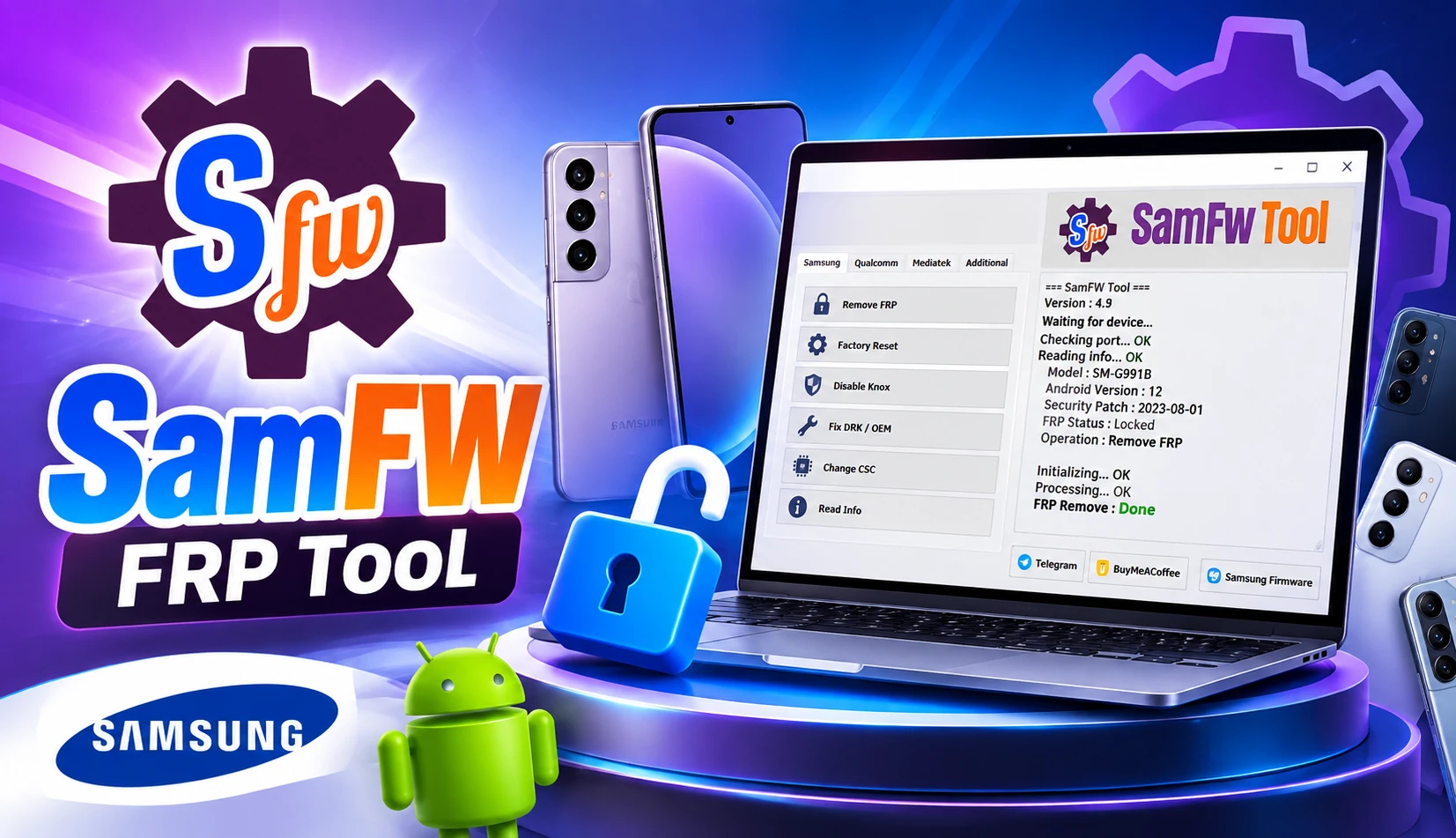
SamFW – SamFW FRP Tool

SamFW FRP Tool makes Samsung servicing easier. Explore its key features, compatibility, setup guide, and useful tips. Get started with the right information today.
SamFW FRP Tool
SamFW FRP Tool can help when a Samsung phone gets stuck after a factory reset. You may see a Google account screen during setup. It asks for the account that was used on the phone before the reset. This can be confusing. The reason is FRP. It stands for Factory Reset Protection. This feature adds security to Android devices. It helps stop someone from using a reset phone without proper account verification. SamFW is not a normal phone app. It runs on a Windows PC. It offers several servicing features for supported Samsung devices. Its support can vary from one phone to another. Android version and security patches can also make a difference. This guide covers the important parts of the tool. You will learn about its features and compatibility. We will also discuss connection modes, common problems, safety points, and other useful details. Everything is explained in simple terms.
Table of Contents
What is FRP?
FRP is a security feature found on modern Android phones. It becomes important when a phone is reset without properly removing the linked Google account first. The feature is meant to protect the device if it is lost or stolen.
What Does FRP Actually Do?
FRP stands for Factory Reset Protection. It connects the phone to the Google account used on the device. After certain types of resets, the phone may ask for those account details again. This adds another layer of protection. A person cannot simply reset a phone and start using it like a new device. The account check helps confirm that the device can be set up by its rightful user. A factory reset and FRP are also two different things. A reset can erase photos, apps, and other personal data. It does not always remove the account verification. This is where the SamFW FRP Tool download may become relevant for supported and authorized servicing situations.
Why FRP Can Become a Problem
FRP is useful for security, but it can be frustrating for genuine owners too. Someone may forget an old Google account. A used phone may still be linked to the previous owner’s account. Another common mistake is resetting a phone before removing the account. A normal factory reset simply prepares the phone for fresh setup. An FRP-locked phone goes a step further. It asks for previous account verification before setup can continue.
What Is SamFW FRP Tool APK?
SamFW FRP Tool free download is a Windows program made for mobile device servicing. It is mainly known for its Samsung-related functions. The tool runs on a computer. It is not an app that you install directly on your phone. FRP is one of its main uses. But the software does much more than that. It includes several tools for checking and servicing supported Samsung devices. These can include device information, ADB functions, MTP features, Download Mode options, CSC-related tasks, and some reset functions.
Technicians may use it when working on Samsung phones that need software-level attention. It can put several useful functions in one place. This can make routine servicing easier. However, the tool does not work the same way on every phone. Support can depend on the model, Android version, chipset, and security patch. Some functions may also require a specific connection mode. So, it is better to see SamFW as a servicing utility. It should not be treated as a universal solution for every FRP or Samsung software problem.
Why SamFW Is More Than an FRP Tool?
Many FRP tools focus on one task. SamFW takes a broader approach. It brings several servicing options into one Windows program. This can save time for technicians. The tool can read basic device information. It also offers ADB and MTP functions for supported phones. Download Mode features provide more options for Samsung servicing. There are also CSC-related tools for certain software and regional settings.
Reset functions are available too. Some supported firmware and software tasks can also be handled through the program. It has even added selected functions for other devices and platforms. This wider feature set makes the tool more than a simple FRP utility. Still, more features do not mean universal support. Compatibility can depend on the exact model, Android version, security patch, chipset, and connection mode. That is why checking the device before using any function is important.
Main Functions
SamFW Tool is not built around one single task. It brings several phone servicing functions into one place. This makes it useful for technicians who work with supported Samsung devices. The exact options can vary by model and software version.
FRP and Device Verification
FRP is one of the better-known functions. The tool can detect supported devices and read useful information from them. This helps identify the phone before starting any service task. Security level also matters here. A function that works on one model may not work on another. The Android version and security patch can make a difference too.
ADB and MTP Functions
ADB and MTP give the computer different ways to communicate with a phone. Supported ADB functions can help read device information and manage certain phone settings. MTP is commonly used when Windows needs to communicate with a connected Samsung device. Some supported functions can also handle application-related tasks.
Download Mode Tools
Samsung Download Mode is mainly used for software servicing. It gives compatible tools access to certain low-level phone functions. SamFW includes several Download Mode options for supported devices. These can be useful during firmware work or when a phone needs software-related attention. The available functions depend on the model.
CSC and Software Configuration
CSC stands for Consumer Software Customization. In simple terms, it relates to regional and carrier-specific software settings. These settings can affect features, networks, and other phone behavior. SamFW includes CSC-related functions for supported devices. However, changing these settings should not be treated as a casual task. The wrong configuration can create unexpected problems.
Reset and Servicing Functions
The tool also includes certain reset and servicing options. A reset can remove personal data from the phone. That may include photos, apps, messages, and saved settings. This is why a backup should be made whenever possible.
Before using any reset function, check the phone carefully. Make sure important files are safe. Also confirm that the selected function is suitable for the exact model. A little preparation can prevent unnecessary data loss.
Will SamFW Tool Work With Your Samsung?
Not every Samsung phone works the same way. Support can change from one model to another. The exact model number is important. Android version matters too. So does the security patch. The phone’s chipset and regional version can also affect compatibility. Older Samsung phones may support functions that newer models handle differently. Security updates can also change how certain servicing features work. Connection mode matters as well. Some functions may need ADB, MTP, or Download Mode. So, do not assume that the tool will work simply because your phone is a Samsung. Check the full device information first. This includes the model number, Android version, and security patch. A quick compatibility check can save time. It can also help you avoid using the wrong function on your phone.
How SamFW Tool Connects to a Samsung Phone?
SamFW Tool 3.1 needs a way to communicate with the connected phone. Samsung devices can use different connection modes for this purpose. The mode you need depends on the task and the phone itself.
MTP Mode
MTP is commonly used when a Samsung phone connects to Windows for file and device communication. It can also provide access to certain supported servicing functions.
ADB Mode
ADB stands for Android Debug Bridge. It allows a computer to communicate with an Android device through supported commands and functions. Some SamFW features use this connection.
Download Mode
Download Mode is mainly used for Samsung software servicing. It gives compatible tools access to specific device functions that are not normally available during regular use.
Other Service Modes
Some devices may use other interfaces, such as Qualcomm- or MediaTek-related modes. These are usually more relevant to advanced servicing.
The important point is simple. Not every mode works on every phone. The correct connection depends on the model, software, and task.
A Simple Way to Use the SamFW Tool
Using the SamFW FRP Tool 3.1 starts with checking your Samsung phone. Find the exact model number first. Then check the Android version and security patch. These details can affect the available functions. Next, prepare your Windows PC. Install the required Samsung drivers. Use a good USB data cable. Make sure the phone has enough battery. Connect the phone to the computer. Wait for Windows to recognize it. The tool should then display available device information.
Check these details before choosing a function. Do not select options randomly. Use only the function that matches your device and the service you need. Follow the instructions shown by the software. Keep the cable connected during the process. Avoid interrupting an active operation. When the task is complete, restart the phone. Check whether it starts normally. If it still doesn’t work, check the model and security patch before trying anything else.
SamFW FRP Tool Latest Version
Keeping SamFW FRP Tools updated can make a difference. New Samsung models receive regular software changes. Older versions may not recognize some newer devices correctly. The latest release can also bring new functions and small improvements. These updates may improve device detection or add support for newer software versions. Still, updating doesn’t guarantee every Samsung phone will work. Compatibility depends on the device itself. The Android version and security patch can also matter. Before installing an update, check the release information. Make sure you are getting the tool from a trusted source. Avoid modified copies or unknown installers. It is also useful to keep the previous version only when you have a valid reason. Otherwise, using the current official release can make it easier to follow recent support information.
How to Install SamFW FRP Tool on Windows?
SamFW FRP Tools download is made for Windows PCs. It is not installed directly on an Android phone. Instead, your Samsung phone connects to the PC through a USB cable.
Download the Tool
Start by downloading the tool from a trusted source. Avoid modified files and unknown websites. They can contain unwanted or unsafe software.
Extract the Files
The downloaded file may come in a ZIP format. Right-click the file and extract it to a folder. Choose a location that is easy to find.
Install Samsung Drivers
Install the required Samsung USB drivers on your computer. These drivers help Windows communicate with the connected phone. Without them, the device may not be detected correctly.
Open the Tool
Open the extracted folder. Find the program file and launch it. If Windows displays a security warning, check the file source before allowing it to run.
Connect the Samsung Phone
Use a reliable USB cable to connect your phone. Wait for Windows to recognize the device. This tool can then display the phone when the connection and device are supported.
Keep the cable connected during an active operation. Do not interrupt the process unnecessarily. This can help prevent connection issues and other software problems.
Common Problems With SamFW FRP Tools
Even after a proper installation, the tool may not work as expected. This does not always mean something is wrong with the software. The phone, drivers, cable, or Android version can also cause problems.
Phone Not Detected
This is one of the most common issues. Windows may not recognize the connected Samsung phone. Check the USB cable first. Then make sure the Samsung drivers are installed correctly.
Tool Does Not Start
Windows security settings can sometimes block a program. Check the file location and make sure you are using a clean copy of the tool. Avoid modified versions from unknown sources.
Connection Keeps Dropping
A weak USB cable can cause repeated disconnections. Try another good-quality cable. Connecting directly to the computer can also help.
A Function Does Not Work
Not every feature works on every Samsung model. Android version, security patch, and device variant can affect support. Check the device details before trying the function again.
Drivers Cause Issues
Old or incorrect drivers can create connection problems. Remove conflicting drivers if necessary and install the appropriate Samsung USB drivers again.
Use SamFW FRP Tool APK Safely
Phone servicing should not be rushed. A small mistake can cause data loss or connection problems. Check everything before starting. Use the tool only on a Samsung phone you own or are authorized to service. FRP is a security feature, so account verification should follow the proper ownership process. Keep important files backed up when possible. Some servicing actions may erase data from the phone. Use a reliable USB cable. Do not disconnect the phone while an operation is running. Download the tool and drivers from trusted sources. Modified files can create security risks. Check the phone model before selecting a function. The Android version and security patch can also affect compatibility. Do not choose random options just to test them. Understand a function before using it. Careful preparation can prevent unnecessary problems.
Who Is SamFW FRP Tool For?
SamFW FRP Tool is mainly aimed at people who work with Samsung phones. Repair technicians can use it for different software and servicing tasks on supported devices.
It can also be helpful in a mobile repair shop. Several functions are available in the same Windows program. This can make regular servicing work more convenient. Some experienced Android users may also find it useful. However, the tool is not something to use without understanding the selected function. Every phone can respond differently. For ordinary Samsung owners, there may be no need to use the tool at all. If a phone asks for the previous Google account after a reset, the normal account recovery process is the safer route. Device support should also be checked first. The model, Android version, security patch, and connection mode can all matter. So, the tool is better suited to authorized servicing rather than everyday phone use.
SamFW FRP Tool Pros and Cons
Every servicing tool has useful points and some limitations. SamFW FRP Tool is no different. Its usefulness can also depend on the Samsung model and software version.
Pros
- Supports several Samsung servicing functions.
- Works from a Windows computer.
- Provides ADB, MTP, and Download Mode options.
- Can display useful device information.
- Brings different tools into one program.
- Regular updates can add support for newer devices.
- The interface is fairly straightforward for experienced users.
Cons
- It is not designed for direct Android installation.
- Support can vary between Samsung models.
- Some functions may depend on the Android version.
- Security patches can affect available features.
- A USB connection and suitable drivers may be required.
Final Thoughts
SamFW FRP Tool can be useful for Samsung phone servicing. It brings several tools into one Windows program. This can make repair work more convenient. But it is not perfect for every phone. Each Samsung model can behave differently. The Android version also matters. So does the security patch. Always check the device first. Make sure the correct drivers are installed. Use a good USB cable too. Some options may feel confusing at first. This is especially true for new users. Technicians may find the tool easier to handle. Use the tool with care. Work only on phones you own or are allowed to service. Keep your important files backed up when possible. A few simple checks can prevent many problems. Take your time and use only the functions you understand.
FAQS
What is SamFW FRP Tool?
SamFW FRP Tool is a Windows-based servicing program. It provides several functions for supported Samsung devices, including device information and software-related tasks.
Is SamFW FRP Tool free?
Some functions are available through the tool without a paid service. However, SamFW also offers paid FRP services for certain supported devices. The available service can depend on the device and security level.
Does SamFW FRP Tool work on Android?
The tool itself runs on a Windows PC. It is not installed as an Android application. The Samsung phone is connected to the computer through USB.
Which Samsung phones are supported?
Support varies by model and software version. The Android version and security patch can also affect which functions are available. It is better to check the device before starting.
Does SamFW FRP Tool need Samsung USB drivers?
Yes. Samsung USB drivers can help Windows communicate with the connected phone. SamFW also provides driver installation as part of its servicing setup.
Why is my Samsung phone not detected?
Check the USB cable first. Then check the USB port and Samsung drivers. Restarting the phone and reconnecting it can also help with basic connection problems.
Can SamFW FRP Tool remove FRP?
FRP-related functions are included for supported devices. However, results depend on the device model and security level. Use such functions only on a device you own or are authorized to service.
Is SamFW FRP Tool safe to use?
Use a clean copy from a trusted source. Avoid modified versions from unknown websites. Also, understand the selected function before running it on a phone.